

Magento 2 import configurable products is crucial for managing and effectively updating product data. Whether you need to bulk update Magento 2 product data, perform a Magento upgrade or migrate product data from another platform, learning how to import configurable products can significantly streamline these processes.
In short, to implement Magento 2 customizable import products, three steps must be followed:
- Step 1. Download the sample CSV file
- Step 2. Preparing the data for import
- Step 3. Import configurable products into Magento
Understanding Magento 2 product configurations
Magento 2 modular products differ from other product types in that they allow multiple variations within a single main product list. Unlike simple products, which stand alone, modular products contain multiple variations known as child-products. These child products inherit the characteristics of the main product, but differ in specific variations, such as size, color, or material.
For example, for a t-shirt, the main product list might contain variations for sizes (small, medium, large) and colors (red, blue, green). This setup simplifies the customer's shopping experience by allowing them to select options without having to switch between product listings.
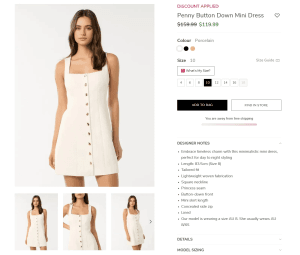
However, setting up these custom products requires precision. Each variant must have its own SKU and the parent-child relationship must be configured correctly so that the products are displayed accurately. This also ensures that Magento 2 can properly manage inventory, pricing, and other features across all variants.
As a result, Magento 2 configurable product import can save time if there is a large amount of product data to update or data is being moved from another platform. Properly configuring product import keeps the relationships between parent and child products intact, so everything appears as expected in the Magento store.
How to Run Magento 2 – Manually Import Configurable Products
Step 1. Download the sample CSV file
The first step in the Magento 2 custom product import process is to download the sample CSV file from the Magento 2 admin panel. This file provides a template to help properly format the data and understand the structure required for configurable products. It will be a reliable reference when preparing the data for import.
- #1. Log in to your Magento admin dashboard. From there, go to «System» > «Import» in the «Data Transfer» section.

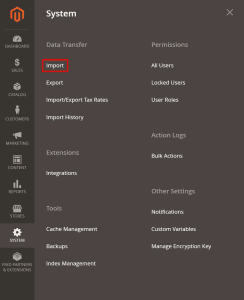
- #2. In Entity Type, select “Products” from the drop-down list. Then, click the «Download Sample File» button and save the sample file to your local device.

Step 2. Preparing the data for import
Once the sample CSV file is downloaded, it's time to prepare the product data. Accurate data preparation is crucial, as even small errors can lead to failed imports or incorrect product displays.

Some tips for preparing the products:
- Organizing parent and child products: Every configurable product needs a parent product (the master list) and child products (the variants). You need to make sure that each child product has a unique SKU and that the attributes match between parent and child items.
- Assign required attributes: Fields like SKU, product name, and custom attributes (e.g. size, color) must be filled in. Each child product must reflect the attributes of the parent, but with specific variations.
- Consistency Check: All attribute names should be consistent and match the options defined in the Magento 2 store. Consistency prevents import errors and maintains a smooth user experience.
Step 3. Import configurable products into Magento 2
To import the data:
- #1. "System" > "Import" in the "Data Transfer" section of your Magento admin dashboard.
- #2. In Entity Type, select “Products” from the drop-down list.
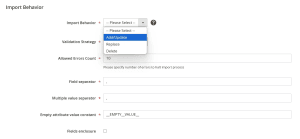
- #3. Select “Add/Update” in the Import Behavior section. This will ensure that new products are added and existing ones are updated if necessary.
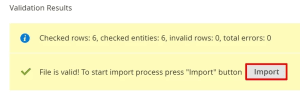
- #4. Click on the “Select File” button to upload the file. The “Check Data” button in the upper right corner of the screen can be selected to scan for errors before importing.
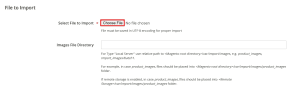
- #5. When validation is complete, click the "Import" button to complete the Magento 2 custom product import process.
Magento 2 Import customizable products from Fixit.gr
While manually importing custom products into Magento 2 can be efficient, it can also be time-consuming and error-prone, especially if a large product catalog needs to be managed or a migration is taking place from another platform.
In these cases, experienced developers of Fixit.gr may be the most reliable partner in this area. They offer solutions to streamline this process, allowing the import of customizable Magento 2 products to be done automatically with expert support. The service is ideal for businesses that want to ensure accuracy and efficiency without dedicating extensive internal resources to the task.
Final Thoughts
Magento 2 with product import configuration is essential for stores that want to manage multiple product variants, perform bulk updates, or migrate data from another platform. With the right approach, you will achieve a well-organized catalog that improves customer experience, boosts engagement, and supports store growth.